
Before you start
Prepare a private Paper server, check a local connection, and plan a backup you can restore before inviting friends.
- A computer you control, a separate empty server folder, and space for a second copy.
- A licensed Minecraft Java Edition client for the join check; Bedrock needs a separate setup.
- A Java runtime matched to the chosen Paper release, and the server operator's agreement to Minecraft's EULA.
Introduction
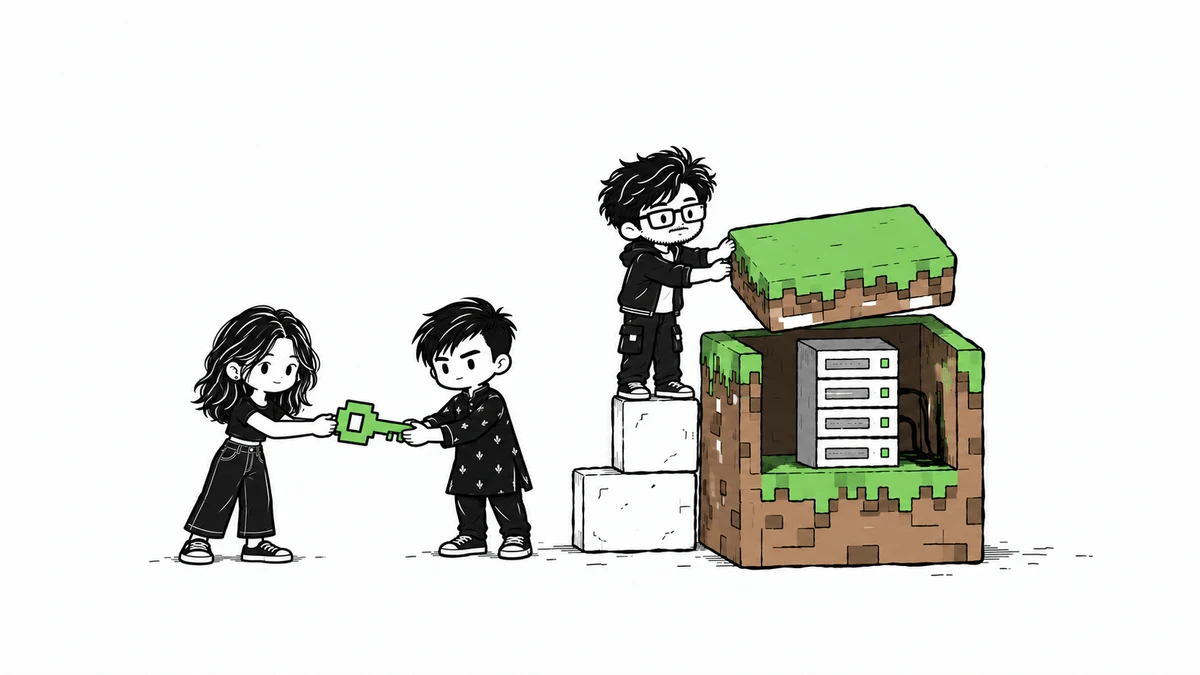
Start with one computer and a local connection. That keeps router settings and hosting decisions out of your first troubleshooting session. Paper runs a Java Edition server with plugin support.1 This walkthrough uses Paper; it does not compare hosts or promise a particular player count.
1. Match the server, Java and client
Open Paper's getting-started page and choose a release your client and any planned plugins support.1 Its current table pairs Paper 26.1+ with Java 25 and 1.20–1.21.11 with Java 21.1 Write down the exact Minecraft release and Paper build you download. These are documentation requirements; no Paper build has been started during preparation.
If Java is missing or the version is wrong, stop and arrange an appropriate installation with the machine owner. Leave memory for the operating system and game client. The memory value in the example below is an editable example, not a measured capacity recommendation.
java -version2. Keep the server in its own folder
Download only from Paper's official download link. Create a new folder such as C:\MinecraftLab\first-smp and place the JAR there. Enable visible file extensions so a filename ending in .jar is clear. Keep this folder separate from personal worlds, downloads and an existing server. Record the filename and download provenance.
Set-Location 'C:\MinecraftLab\first-smp'
java -Xmx2G -jar '.\paper.jar' --nogui
3. Read the EULA before proceeding
The first run may stop and create an eula.txt file. Read Minecraft's linked EULA yourself.5 Only an authorized operator who agrees should set eula=true.5 Prepare the loopback settings in the next step before starting again. Do not treat a copied startup script as consent. Wait for startup to finish; if it fails, keep the first relevant error and check the Java/server pairing before retrying.
4. Start with a loopback-only configuration
Keep the server stopped while editing server.properties; create that file in the test folder if it is absent.2 For this same-computer check, use the settings below before the first accepted startup. server-ip=127.0.0.1 limits the listener to the local computer; a friend on another computer cannot join this configuration. Keep online-mode enabled. A whitelist limits access; it does not replace account authentication.
server-ip=127.0.0.1
server-port=25565
online-mode=true
white-list=true
enforce-whitelist=true
enable-rcon=false
enable-query=false
5. Add yourself and check a local join
Restart the server. In the server console, enter whitelist add followed by your exact Java username, then whitelist list. Launch the matching Java client, choose Multiplayer and Direct Connection, and enter 127.0.0.1:25565. Confirm you can move, place a recognizable block and leave. Give operator rights only when an administrative task needs them. A ready log alone does not prove a successful join or whitelist denial.
whitelist add YOUR_JAVA_NAME
whitelist list
stop
6. Stop, copy and restore on a separate test folder
Type stop and wait for the Java process to exit. Copy the entire server directory to a separate backup location, keeping worlds, properties and plugin files together. Label it with the exact server version. Restore by copying that backup into another empty directory; never overwrite the only working copy. Keep the restored test bound to loopback and run only one copy on port 25565. Join the restored world and check your block and inventory. That final check is still pending during preparation.
Before sharing access, decide who will maintain the server and backups. A remote-host setup needs its own access, firewall and restore checks. This guide stops at local validation; no public port forwarding, tunnel or hosting change is required here.
7. Diagnose one failure at a time
If Java reports an unsupported class version, compare java -version with Paper's release table. If the JAR cannot be opened, check the current directory and actual filename. If the port is in use, stop only the server process you recognize or choose a different local test port. For a join failure, check client version, listener address, startup completion and whitelist spelling in that order. Keep authentication enabled while investigating account errors.
- Connection refused: confirm the process is still running and the client port matches
server.properties. - You are not whitelisted: check the exact Java account name, not a Bedrock gamertag.
- Backup looks complete but restore fails: preserve both directories and inspect the restored startup log. File-copy success alone cannot establish world integrity.
8. Make the next change on a copy
Once local joining and restore both work, use the related Paper plugin guide for one controlled change. Keep a record of what changed and the last working backup. Delay plugins and remote access until the baseline checks pass.
Troubleshooting
Use the symptom checks above. Record the exact version and first relevant error before changing another setting.
Sources & evidence
AI-assisted guide prepared for INFIRALS. Documentation-based guide. No Paper startup, Minecraft client join, whitelist-denial or world-restore test has been performed. A separate synthetic file-copy check cannot prove a Minecraft backup. Exact server/client versions and owner evidence are pending.
- Getting started (PaperMC)
- server.properties (PaperMC)
- Updating (PaperMC)
- Minecraft server download (Mojang / Microsoft)
- Minecraft EULA (Mojang / Microsoft)