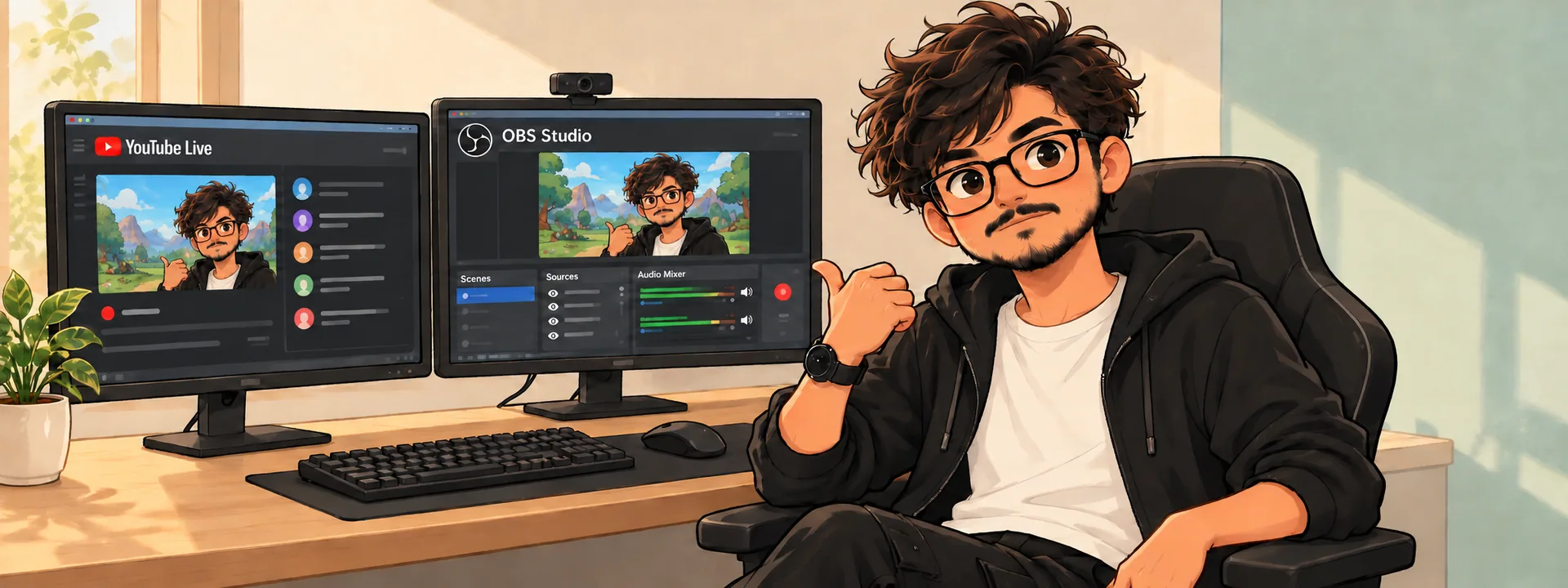
Before you start
Build a simple capture scene, check a short local recording, and prepare a streaming checklist without starting a broadcast.
- OBS from its official website, a game you may record, and a folder with free space for test clips.
- Headphones and a microphone if you want commentary; permission from anyone whose voice appears.
- An isolated OBS environment or consent to change the active setup. Never overwrite someone else's scenes or settings.
Introduction
A local recording gives you something concrete to inspect: readable gameplay, audible speech and a file that plays from beginning to end. Work through that before connecting a streaming account. Menu labels may vary by OBS release and operating system.1
1. Protect the existing OBS setup
If OBS already has personal scenes and accounts, leave that configuration alone.4 Use OBS's documented portable mode in a separate writable copy where supported, or ask the operator to prepare an isolated environment.4 A new scene collection separates sources, but it does not isolate every application setting. Note the OBS version, OS, GPU, microphone and intended recording location before testing.
The executable found during preparation reports OBS 32.2.2. It has not been launched or used to record during preparation, and that file version is not a claim about the newest release. No personal scenes, account connections or microphone settings were inspected.
2. Configure for recording first
In the isolated setup, open Tools > Auto-Configuration Wizard and choose the recording-focused path. Inspect Settings > Output and the recording path before applying settings. Check that the folder exists and has room. Keep the wizard's result as a starting point; hardware and the game workload determine what your PC can sustain.
3. Capture one game window
Create one scene with a clear name such as First recording. On Windows, try Game Capture and select the intended game window. For ordinary applications use Window Capture. On macOS use the appropriate macOS screen-capture source; Game Capture is Windows-only. Check the preview for the correct window and hide chat, notifications or private overlays before recording.
If the image is missing, make sure the game is running and the source is visible. Fullscreen games can stop rendering when you switch away from them. Review the Game Capture guide for game-specific limitations. Do not disable anti-cheat or security tools to force a capture.
4. Check game audio and commentary separately
Use headphones. Watch the mixer while the game makes sound, then while you speak at your normal volume. Confirm the selected microphone is the one you intend to use. Avoid adding the same device twice through both a global device and an audio source. Make a short test with a spoken phrase over gameplay and listen back; moving meters alone cannot establish intelligibility or synchronization.
5. Record a short local sample
In Settings > Output, check the recording format and encoder available on your machine. OBS's recording guide recommends MKV because an interrupted recording is less likely to lose the whole file. Use Start Recording, play through movement and menus, speak a few lines, then Stop Recording. Do not click Start Streaming. Suggested test length: one or two minutes, an editorial example rather than a benchmark.
Open the saved file in a player. Check the beginning, a moving section and the end. Listen for clipping, repeated audio and a voice that disappears beneath the game. Confirm that what you recorded matches what you meant to capture. Keep a note of resolution, frame rate and encoder beside the clip.
6. Make an editing copy if needed
If your editor needs MP4, use File > Remux Recordings to convert the container. Keep the original MKV until the output has been checked. Remuxing does not improve a blurred image or repair a missing microphone track. Replay the converted copy before deleting any source file.
7. Change one setting and repeat the test
Black screen: check the selected window, source visibility and source type. Silent microphone: check the selected device and mixer mute state, then repeat a local sample. Distorted speech: lower input gain and listen again. If OBS reports rendering or encoding lag, reduce capture load, output resolution or frame rate one at a time and compare the same short scene. Record actual observations; do not describe unmeasured changes as a performance improvement.
- A clip that plays smoothly on this machine does not prove stream stability.
- A loud mixer meter does not prove clear speech.
- If a change makes the sample worse, return to the last recorded settings instead of changing several controls together.
8. Prepare the stream checklist
For a later YouTube encoder stream, check channel eligibility and the current official encoder table close to the intended session.6 YouTube currently requires channel verification, no live-stream restrictions in the previous 90 days and a minimum age of 16.5 Mobile streaming has separate requirements. Select resolution, frame rate and bitrate for sustained upload capacity; there is no universal bitrate for every PC or connection. Keep stream keys private.
Write down the intended platform, privacy setting, moderation plan and audio/video checks for a separately authorized stream test. No account connection, key entry, private test broadcast or live stream is part of this guide. Use the related first-video guide when your local clip is ready to edit.
Troubleshooting
Use the symptom checks above. Record the exact version and first relevant error before changing another setting.
Sources & evidence
AI-assisted guide prepared for INFIRALS. Documentation-based guide. Installed OBS file version 32.2.2 was inspected, but no scene capture, microphone listening, clip playback, remux or streaming test was performed. Hardware and operator evidence remain pending. Local recording instructions do not establish broadcast quality.
- Quick Start Guide (OBS Project)
- Game Capture Source (OBS Project)
- Standard Recording Output Guide (OBS Project)
- Running in Portable Mode (OBS Project)
- Get started with live streaming (YouTube Help)
- Choose live encoder settings, bitrates, and resolutions (YouTube Help)