Before you start
Turn an owned recording into a focused local export, prepare an honest thumbnail, and check the upload decisions before publishing.
- Footage you own or have permission to edit, with consent for recorded voices.
- An editor your device can run, enough storage for originals and exports, and an image editor.
- A working local recording; a YouTube account is needed only for a later authorized upload.
1. Give the video one job
Write one sentence describing what a beginner will learn or see. An example is: Find the first iron safely in a new survival world. This is a sample brief, not a claim about an existing video. Choose a beginning, a useful middle and an ending that answers that promise. Remove clips that do not help it.
2. Keep the originals and record permissions
Make a project folder with originals, project files, exports and thumbnail versions. Work from copies. Check the game's creator policy and the rights to music, artwork and voices before using them. Giving credit alone does not grant permission. YouTube's copyright guidance explains permissions and exceptions; it cannot certify the rights to your particular clip.6
3. Build a simple edit
Shotcut is the documented example during preparation; another suitable editor can follow the same plan.1 Record the actual installed version before testing. Import the clip, add it to the timeline and trim the wait before the useful action. Put the explanation close to the action it describes. Save the project under a new name so you can return to the original sequence.
Play each join between clips and listen with headphones. Cut repeated instructions and long setup screens. Add text only where a viewer needs a name, key or short explanation. If commentary is hard to hear, lower competing audio and check the result in a fresh playback. Do not add music simply to fill silence.
4. Export a video file and play it
In Shotcut, saving a project preserves editing instructions; Export creates a playable file.2 Open Export, choose a suitable standard preset, then Export File and a new output filename. Avoid changing advanced codec controls without a reason. Wait for the export job to finish before closing the editor. No Shotcut version or export result has been tested during preparation.
- Play the exported file from beginning to end, not only the timeline preview.
- Check voice and game audio, readable labels, missing media and the final frame.
- Keep the source recording and project until a separately authorized upload and playback review are complete.
5. Make one readable, accurate thumbnail
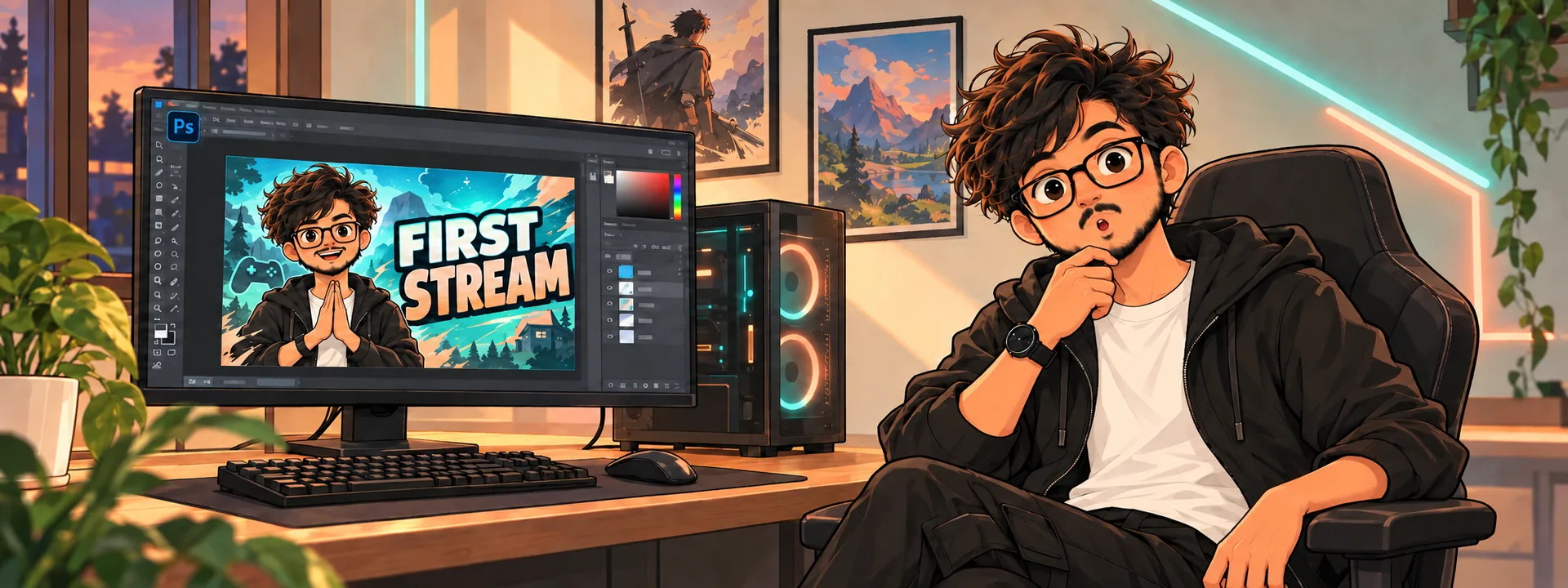
Choose a frame or illustration you have rights to use. Show the actual subject of the video and use only as much text as remains readable in a small preview. Open a reduced-size copy beside the title and check whether both still describe the same video. Keep the editable image and export a separate upload copy. No thumbnail artwork or screenshots are supplied with this guide.
YouTube's current custom-thumbnail page requires account verification and has separate instructions for videos and Shorts.4 Open the linked page and current Studio controls for the format you intend to upload. This guide does not hard-code older pixel or file-size limits: those limits were not established by the retrieved help page.
6. Prepare the title, description and audience choice
Write a title that describes what the video actually delivers. Put essential context and permitted credits in the description. YouTube requires creators to choose whether content is made for kids; do not infer that choice solely from the game being played.5 Read its audience guidance and resolve uncertainty before upload. Keep the selected visibility and any publication plan in your checklist.
7. Upload only when you are ready
For a later authorized computer upload, YouTube documents Studio > Create > Upload videos, followed by file selection and video details. Check audience, thumbnail, visibility and processing before making anything public. A local export does not prove successful upload, copyright clearance or published playback. This C3 workflow ends with local preparation; no file is sent to YouTube.
8. Fix the file before retrying
If the export contains black sections, check whether the source files moved and reconnect them in the editor. If the project opens but no playable video exists, use Export rather than Save. For unreadable thumbnail text, simplify and check again at small size. If Studio does not offer a custom thumbnail, inspect feature eligibility rather than repeatedly uploading the same file.
Use the related OBS guide if the source recording itself has missing audio or capture problems. Editing cannot recover a microphone track that was never recorded. Keep the first project small enough that you can check the whole exported file.
Troubleshooting
Use the symptom checks above. Record the exact version and first relevant error before changing another setting.
Sources & evidence
AI-assisted guide prepared for INFIRALS. Documentation-based guide. No owned clip, editor version, edit/export, thumbnail readability test or Studio upload was tested. Footage rights and contributor/operator evidence remain pending. No external upload or publication occurred.
- Quick Start Guide (Shotcut project)
- Export Basics (Shotcut project)
- Upload YouTube videos (Computer) (YouTube Help)
- Add custom thumbnails on YouTube (YouTube Help)
- Set your channel or video's audience (YouTube Help)
- Copyright on YouTube (YouTube Help)